Google Chrome
You can download from here if you don't already have it.
Having issues with a site?
Cache Lingering
Google Chrome has a habit of 'hanging on' to certain cache files that sometimes break a website if they update the site and your cache doesn't get the updates.
Follow these steps (in order) to see if it'll help your site work better.
- On Windows, hold Ctrl and press F5 to force refresh the page. (Command (⌘) + F5 on macOS)
- This usually works in most cases
- Websites will tell you to delete your cache and your cookies, but that's overkill. See below...
Cookies
Although cleaning your cookies can fix some issues, this will log you out of EVERY website and also destroy your personal settings for a variety of sites. This is normally a 'last ditch effort' and should not be needed in a lot of cases.
Clean Browser Cache
Hold Control, Shift, and press Delete (Ctrl+Shift+Del) or click the "Three-Dot" menu
in the upper right of the screen, select "Clear browsing data..."
Hold Command (⌘), Shift (⇧), and press Delete (⌫) or click the "Three-Dot" menu
in the upper right of the screen, select "Clear browsing data..."
Both Windows and macOS will look similar to this:
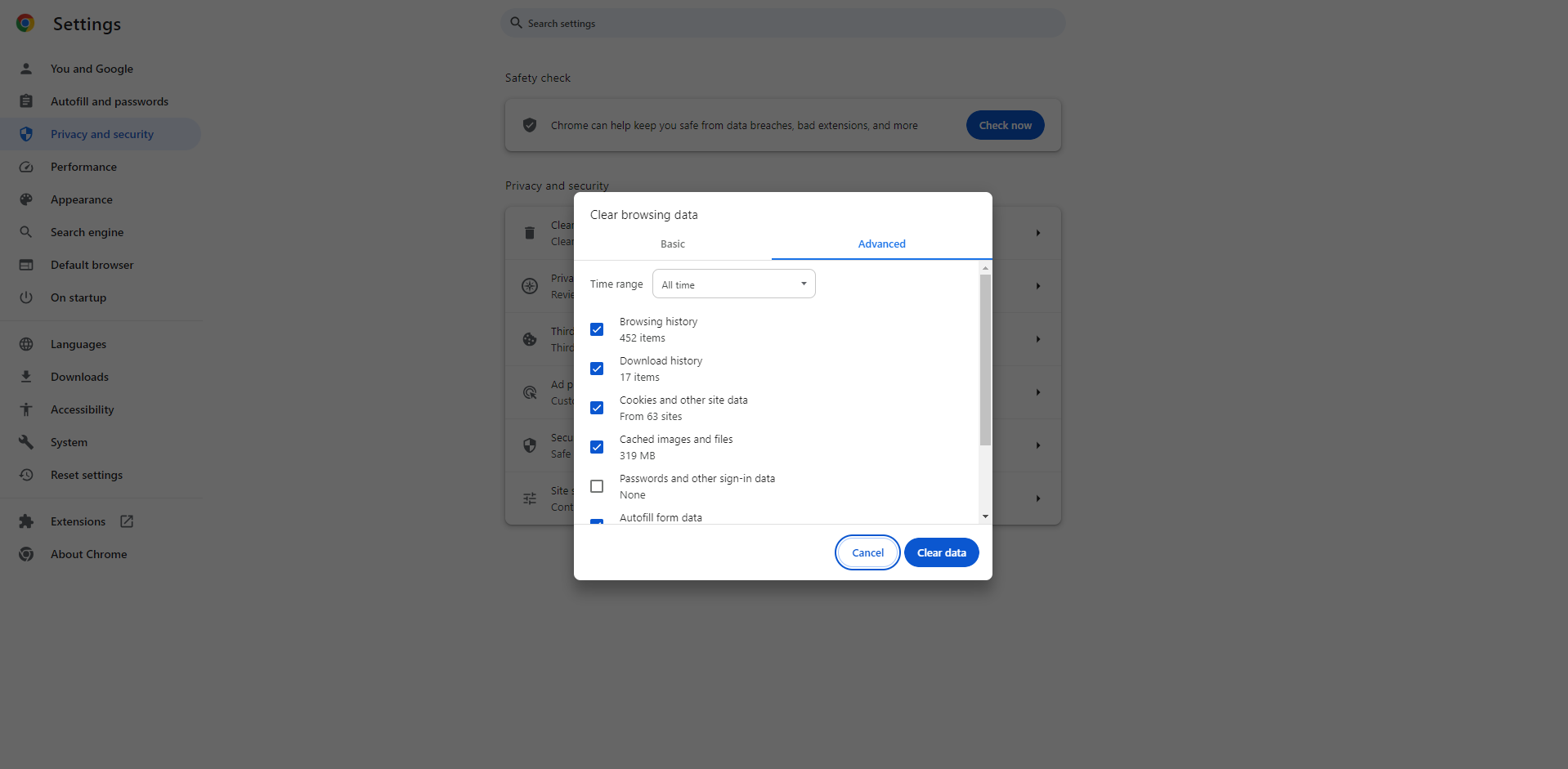
Click Advanced at the top:
* Change "Time Range" to at least 24 hours.
* "Browsing history" will just clean up the list of sites you've been to in the specified time range
* Probably Unneeded for this
* "Download history" will just clean up the list of downloads you've made in the specified time range
* Probably Unneeded for this
* "Cookies and other site data" is one that a lot of people recommend, but most of the time it's not worth it (yet).
* If checked, this will log you out of all websites
* If checked, this will destroy any personal settings that websites store on your computer, making you have to set things up again
* "Cached images and files" <- This is the one you MUST check for this to work.
* "Autofill form data" is just as it implies, Chrome's cached info to help you fill out web forms (including login pages) faster
* "Site settings" leave unchecked as it's not helpful for this
* "Hosted app data" leave unchecked as it's not helpful for this
New Improved Way
This has been around for years at this point, but a lot of people don't know about it. You can dump the cache (and cookies) for a single site without effecting all your other logged in pages/apps.
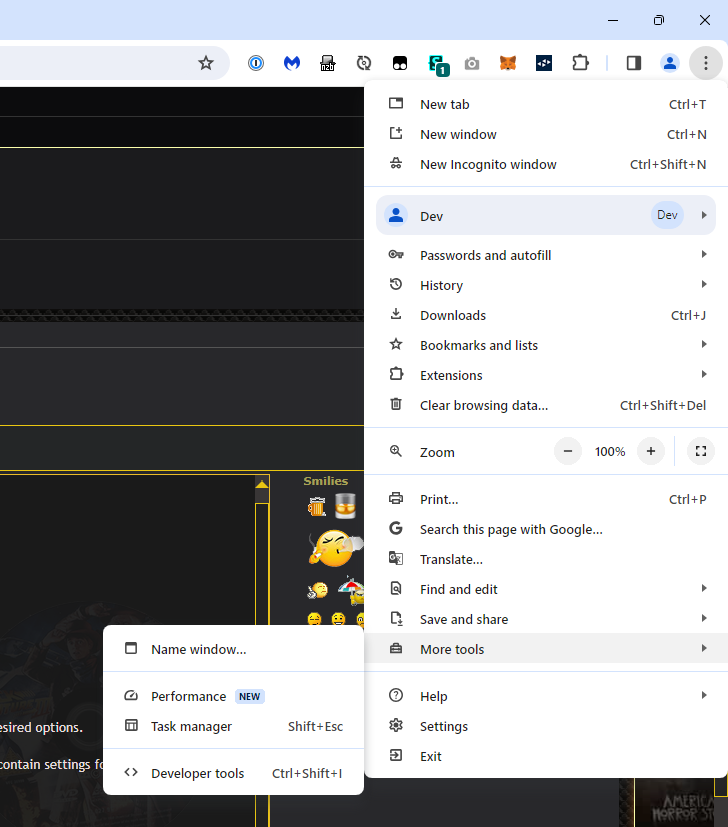
Hold Control, Shift, and press I (Ctrl+Shift+I) or click the "Three-Dot"
menu in the upper right of the screen, select "More tools" then select "Developer Tools"
A quick-tip: You can also use F12 to toggle this feature on/off
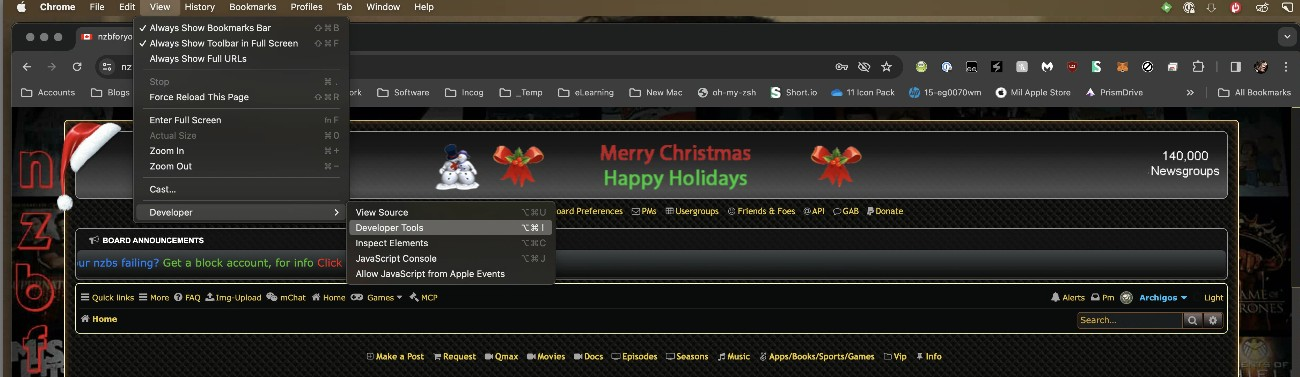
Hold Option (⌥), Command (⌘), and press i, OR go to "View" -> "Developer" -> "Developer Tools"
Either a 'pane' will open on the side of the screen (right side by default) or a new little window will open with the developer tools. Ignore these for a second and instead, now right-click on the "refresh" button.
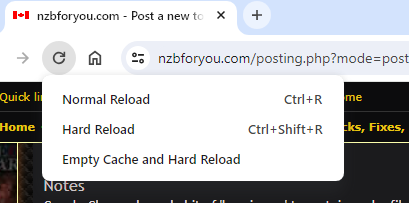
Click "Empty Cache and Hard Reload" and you should be fixed.
Now, on BOTH Windows or macOS, after you have hard reloaded the page, you can close the Developer Tools as they are no longer needed.